


I’ve wanted a magnolia tree for some time, so I finally planted one this spring. This is the one flower I had this year. I’m looking forward to more next year!
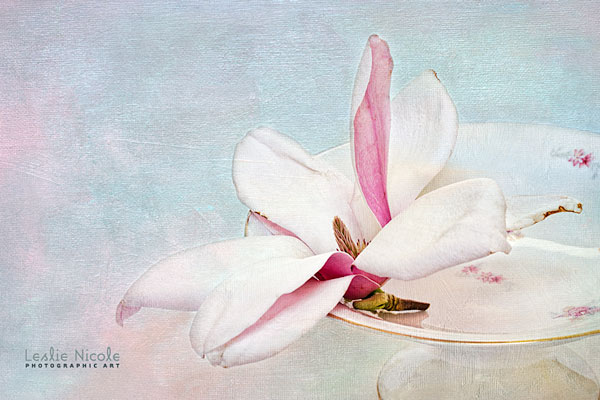
Final, textured magnolia image.
Here’s the image with only the initial adjustments in Lightroom.
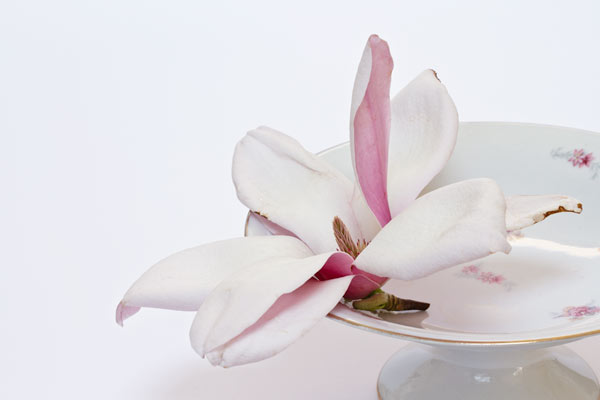
Image with basic Lightroom adjustments.
Below, I’ve made adjustments in Photoshop using the Topaz Labs Adjust 4 filter* using the Clarity setting (one of my go to settings.) I then also added a levels adjustment layer for more contrast. A vibrance adjustment layer gave me a little more pop in the color under the magnolia petals.
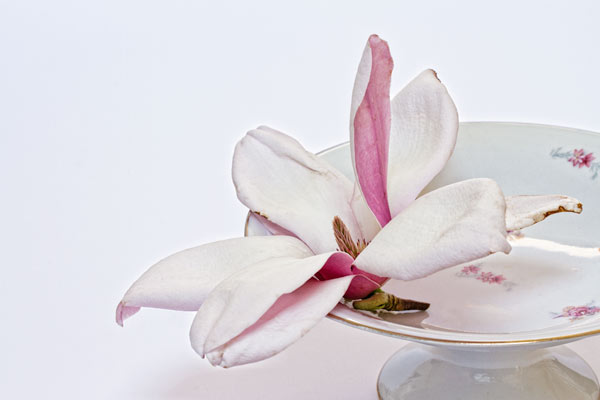
Photograph with adjustments and a Topaz Labs filter.
The Textures
I then applied 3 textures from the Artiste Collection.
The Photoshop Layer Panel
You can see the details for each layer written in the layer panel.
A few notes to point out.
- I often use adjustment layers on textures. I find when I use the multiply blend mode, I almost always increase the contrast. (see tutorials on using adjustment layers and using clipping masks.
- I added a little blue color on the right side. I just painted with blue and then used the color blend mode.
- For the Fauve Rainbow texture, I also use a Burn/dodge overlay layer to deepen the color on the right side a little bit.
- Also on the Fauve Rainbow texture layer, I decreased my layer mask to only 43%. I wanted more of that texture to come through over the flower.

Photoshop Layer Panel
Let me know if you can see the details of each layer enough in the graphic or if you prefer that I write out the steps as well. Thanks!
Learn more about the Artiste Collection
* Topaz Labs Filters is an affiliate link. I get a small commission from any sales resulting from a click from this site (at no extra cost to you.) I really do love these filters. Nearly all of my own images use one of these filters. Thanks for supporting the site.
Leslie,
Thanks so much for this very helpful layer panel and Topaz explanations!
Going to go experiment right now.
Hugs,
Lorelei
Your finished photo is gorgeous! Congratulations on having your “first” bloom after planting your tree.
Thank you, Beverly!
I love magnolias AND I love how your final image looks. Thank you for sharing this.
Hi Leslie, Thanks for the newsletter. Just a quick note as you requested a comment. The different newsletter service works just fine, and the layer details are very clear to read :-). Everything looks pretty good.
Hans
Can see the details just fine! T.y!!
The original image has been enhanced by your Beautiful work.
Many thankns for the screen shot of the way you achieved this.
Have a lovely day,
Clare
Sharing the layer panel helps a lot - thanks for including it
Leslie,
Why is there a lock beside the Artiste Sea Foam layer?
A beautiful composition and effect you have given it.
Sandra
Hi Sandra,
I will often lock a layer so that I don’t accidentally paint on the texture instead of the layer mask. Believe me, it happens! I wrote a post on this: http://frenchkisstextures.com/tutorials/using-textures/quick-tip-partially-lock-down-your-texture-layers/
Thanks for your comment! xx
Leslie
how would fail and gimp work with texture Gimpo use l Layer Mask how it works
thank you ante
Yani, I’m sorry but I don’t quite understand. Do you mean you use Gimp? I don’t really know how to use Gimp. I suggest doing a search for using layer masks with Gimp. I’m sure you’ll find something.